

I heard about a miracle button in Power BI that fixes the tab order. Tab order has always been a bit of a nightmare for me, so a single button that sorts it all out sounded almost too good to be true. It is called “Have tab order match visual order” and it sits in the Tab order pane, next to the up and down arrows.
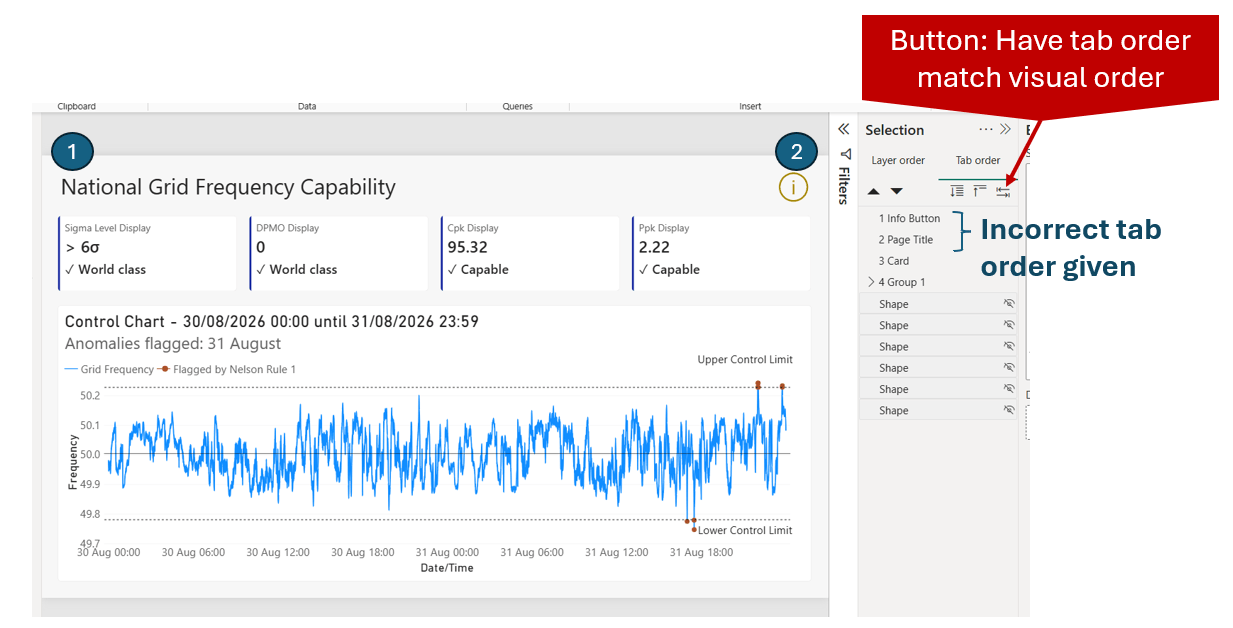
I tried it on my Six Sigma grid frequency report, a simple page with a title, an info button, a row of cards, a control chart and two labels on the chart. I expected the title to come first. The Info Button came first.
What the button does
Meagan Longoria explained the button in her 2021 post “What are those new buttons under tab order in Power BI?”. It sorts the visuals ascending by Y and then X, meaning top to bottom, then left to right. She also warned that “there will be times that this tab order will not be what you want”.
In my case, the title should come first and then the Info Button, but that is not what happened. The reason is in the PBIP or the visual format pane, where you can read the position of each visual (X and Y).
| Visual | Left (x) | Top (y) | Height | Stored tab order | Position in the Tab order pane |
| Info Button | 1731.6 | 33.3 | 90.4 | 25 | 1 |
| Page Title | 46.0 | 36.8 | 107.3 | 20 | 2 |
| Card | 39.8 | 131.8 | 199.2 | 15 | 3 |
| Control Chart | 39.8 | 364.8 | 674.3 | 10 | 4 |
| Upper Control Text | 1449.8 | 478.2 | 61.3 | 5 | 5 |
| Lower Control Box | 1462.1 | 895.0 | 46.0 | 0 | 6 |
The page is 1920 by 1080. The Info Button sits 3.5 pixels higher than the Page Title, so a top-to-bottom sort puts it first. Sort these six by top edge and you get exactly the order in the pane. The stored numbers run in even steps of five, and in this file a higher number comes first, which is why 25 is position 1 and 0 is position 6. Six decorative shapes that I hid from the tab order have very large negative values, and they sit at the end of the list. Because they are hidden, keyboard navigation skips them.
The button did what it says. It sorted by position. It just does not treat two visuals on the same row as being on the same row. A difference of a few pixels in their top edges is enough to change the order.
This is one report, so I can only say what happened here. I cannot tell whether Power BI compares the top edge, the centre or the bottom edge, because the button is higher than the title by all three measures. I also have not tested how it breaks ties.
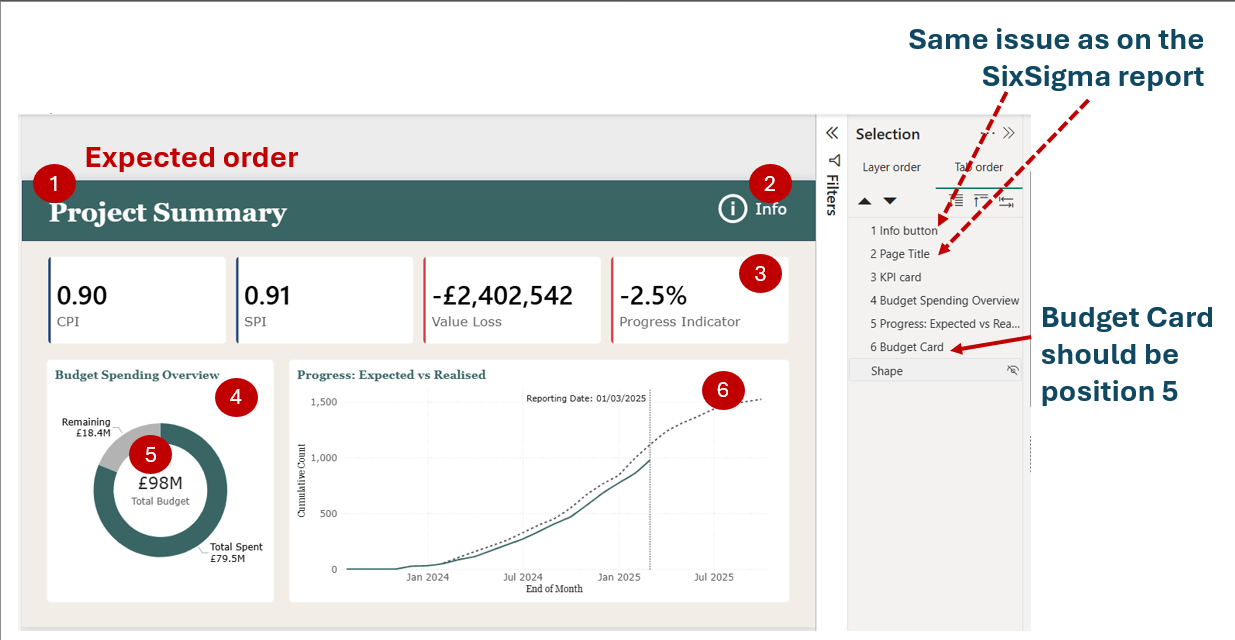
Stacked visuals are another weak spot. In this report, the Upper Control Text and Lower Control Box sit on top of the control chart, and they came out in the right order. In another report I tested, the Budget Card was stacked on top of a donut chart. The button put it last, at position 6, after the Progress chart, when it should have been position 5, right after the donut. The donut and the Progress chart start at the same height, and the card sits lower, inside the donut, so a top-to-bottom sort places it after both charts. The button compares only the top edge of each visual, so it has no way of knowing that the card belongs to the donut.
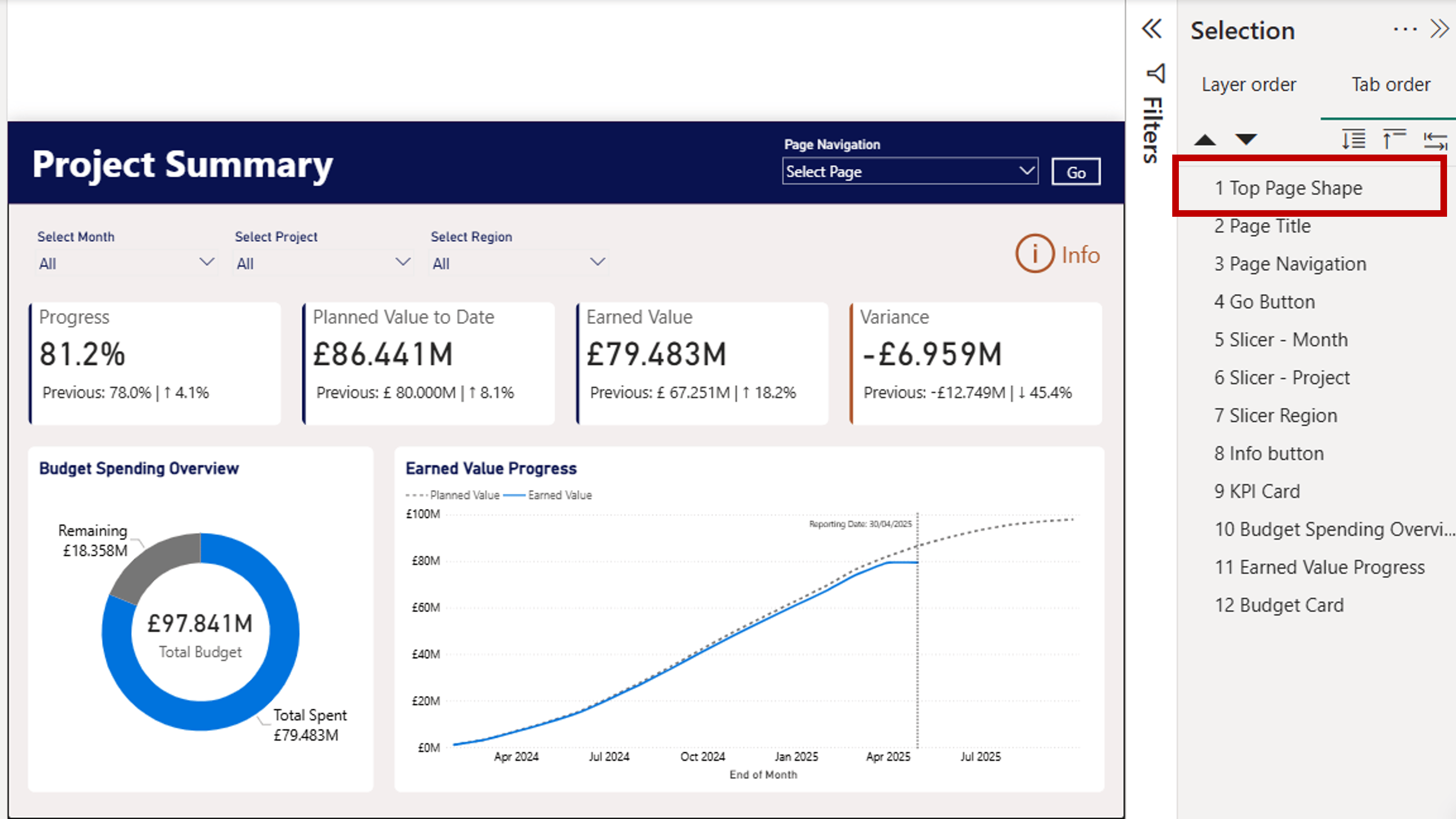
Another detail to be aware of: if you add any decorative shape, it will also be sorted by its position on the page, so you still need to hide any decorative elements under the Tab Order pane. See the example below, where the top bar on the dashboard is a shape that is not hidden under the tab order. Because it’s at the top of the page, Power BI assigns it position 1.
Why it matters
Tab order is how many people experience a report. Someone using a keyboard, a screen reader, a switch device, or a screen magnifier moves through the page one Tab press at a time, and the order in which they meet things becomes their picture of the page. Here they land on the info button before they have heard what the page is called, so the button arrives with no context. Then focus jumps to the far left for the title. If you use a magnifier, the view leaps from one side of the page to the other, and you can lose your place. If you cannot see the screen, you have no way of knowing the order is odd. You assume that is how the page is built, or that something is missing. Every unexpected jump costs effort, and that adds up across multi-page reports.
It is also a compliance point. WCAG 2.2 success criterion 2.4.3, Focus Order, requires a focus order that preserves meaning and operability. It is not always an error, since some authors want a button first or last, but that should be the author’s choice and not a 3.5-pixel accident.
What to do
Check the Tab order pane after you press the button (or even if this feature is enabled by default), especially for visuals that share a row, such as a title and a button. If their tops are a few pixels apart, align them (Format, then Align top) and press the button again, or drag them into the order you want. When the tops are equal, the order should depend on the left position, as Meagan describes, but I have not tested that.
For stacked visuals, such as labels or shapes placed over a chart, check the order in the pane after pressing the button and drag them where you want them.
If you have a report where the button gave you an order you did not expect, I would like to see it.
Thank you for joining me on this journey. Until next time, let’s keep crafting accessible and ethical insights that make a difference!


